MindKits support guide | Updated 10 August 2026
Bambu Lab printer stops after the first few layers, or mid print, with no error message
Applies to:Bambu A1 seriesBambu P1 seriesBambu X1 seriesTopics:Print stopsmicroSD cardFile transferPowerPlate detection
Short answer: a print that halts with no error is telling you something, even though the screen is quiet. The useful first move is not a repair, it is classifying the failure. Did the machine lose power or lose its screen, did it keep moving while filament stopped coming out, did it pause or halt deliberately, or did the file or storage card fail? Those four patterns point at very different causes: power and board communication, extrusion, a deliberate pause or detection halt, and file or storage failure. Work through the checks below in order, gather the evidence listed near the end, and contact us if the fault survives the safe steps. In several of our own cases no single root cause was confirmed until logs and photos were reviewed, so do not assume the first plausible explanation is the right one.
Which machines this guide covers
These steps are drawn from support cases on the Bambu Lab P1P and P1S, the A1 and A1 mini, and the X1 Carbon and X1E. Menu names, log locations and available tools vary between models and firmware versions, so treat the sequence as the method and use your own model documentation for the exact button presses.
Symptoms that fit this guide
- The print stops after one or two layers with no message, often on a machine where a plate or detection warning had recently been overridden.
- The print runs for roughly half an hour to an hour and then the machine goes unresponsive. Small files finish, large ones or cloud sends fail.
- A total stop mid print where the rear power light is still on but the screen and the front light are dead.
- Motion carries on normally but nothing is coming out of the nozzle, so the machine prints air.
- A storage card error appears on screen, the machine will not start a job, or the card no longer clicks and holds in its slot.
Several different problems get lumped together under "it just stopped". Sorting out which one you have before you change anything saves a lot of guessing.
The four diagnostic paths
A silent stop becomes much easier to diagnose when it is classified as power loss, extrusion loss, a deliberate pause or a file and storage failure.
Path 1: the printer loses all power
The screen goes dark, lighting goes out, or the machine is completely dead while the rear switch is still lit. This is the one path where you stop rather than test. Switch off at the wall, unplug, and contact us. Do not open the machine, take meter readings or work on wiring, the power supply or any board. If there is a burning smell, smoke, scorching, discoloured wiring or a tripped RCD, leave it unplugged and treat it as an electrical and fire safety matter.
Path 2: the printer stays on but stops extruding
Motion carries on, or the machine sits awake, but no material is coming out. Owner-safe checks: dry the filament, check the spool for tangles and the feed path for resistance, confirm the filament profile and temperature, and follow your model's documented routine for clearing a partial blockage. If temperature readings look implausible, or the hotend cooling fan is not running properly, stop and contact us rather than continuing to test.
Path 3: the printer pauses or halts deliberately
The machine halts cleanly and stays awake, often after a detection event, a pause condition or a dismissed warning. Read any message on-screen and photograph it, check whether a filament runout, AMS or detection condition triggered the pause, and resolve the underlying warning rather than dismissing it. What triggers a pause is model-specific, so use your own model documentation.
Path 4: file or storage failure
A storage card error appears, the job will not start, the card is not recognised, or large files fail while small ones complete. Owner-safe checks: try a known good card from a reputable manufacturer, re-slice and re-export the file, and compare printing from the card against sending over the network. Always eject the card from the menu, or power the machine off, before removing it.
Ordered checks, lowest risk first
Save the evidence before resetting, then use controlled card, network, plate and filament tests. Repeat the print only when no electrical or mechanical stop sign is present.
- Save the evidence before you change anything. Photograph the screen exactly as it stopped, take a short video if the machine is doing something odd, and save the log files off the storage card. Eject the card from the printer menu, or power the machine off, before you pull the card out. Once you reprint or reset, that evidence is gone, and it is the thing our technicians ask for first.
- Classify the failure into one of four paths. Path 1, the printer lost all power or its screen. Path 2, the printer stayed on but stopped extruding. Path 3, the printer paused or halted deliberately, for example after a detection or pause event. Path 4, the file or the storage card failed, so the job never completed reading. Write down which path it was and roughly how far into the print it happened, then follow the checks for that path.
- Test the transfer path. Print the same file from the storage card, then send the same file over Wi-Fi or cloud. If card printing is reliable and network sends stall or fail repeatedly, that points at the data path rather than the printing hardware. Note that once a file has fully transferred and the print has started, an ordinary mid-print stop is not by itself evidence of a wireless module fault. We need logs, or a repeatable pattern that clearly follows network sends, before treating the wireless hardware as the cause.
- Try a different known good card. Cards are consumables and they do wear out with repeated reading and writing. Use a card from a reputable manufacturer, formatted to the format your model documentation specifies, and rated at least Class 10 or U1. Cheap unbranded cards fail quickly and cause exactly this kind of unexplained stop. Replace the card whenever read or write errors start recurring. Some models rely on the card for normal operation, so check your own model documentation before assuming the printer itself is at fault.
- Check the build plate and its detection. Plate identification is model-specific, and not every printer detects a plate code the same way or at all, so check what your model actually does before drawing conclusions. If the machine stops in the first couple of layers, clean the plate, photograph any plate marking or code your model uses, try flipping it or swapping in another plate, and if you have a second identical machine on site, swap plates between them. If the fault follows the plate, the plate is the suspect. If it stays with the machine, the detection camera or lens may need a gentle clean with isopropyl alcohol on a cotton bud, following your model guide.
- Do not keep overriding a detection warning. If you have been dismissing a plate or detection error to get prints away, treat that as an unresolved fault rather than a workaround, and tell us about it. We have no confirmed evidence that dismissing a warning causes a later stop by itself, so record it as context rather than a diagnosis.
- Look at the filament if the machine is printing air. Damp filament is the most common cause and drying it is cheap and reversible. After that, suspect a partial blockage in the hotend. Follow your model documentation for a cold pull, and note that some machines have an onboard cold pull routine. If you are printing flexible filament, check your printer's documented requirements first, because feeding depends on the filament hardness, the feed path, the extruder and any model-specific hotend restrictions.
- Reseat the accessible connectors, with the machine unplugged. On some models a communication cable on the underside of the machine and the toolhead connectors can work loose. Turn the printer off and unplug it from the wall first, then reseat only the plug in connectors your model documentation shows. If a step needs tools, a board removed, or anything cut or unscrewed beyond a service panel, stop there and talk to us.
- Repeat the same print once, deliberately, but only if it is safe. Do not rerun anything if the machine lost power, ran hot, smelled of burning, has damaged or discoloured wiring, has tripped an RCD, or shows visible mechanical damage. In those cases leave it unplugged and contact us. Otherwise, if the stop happens at a similar point or a similar time each run, that repeatability is valuable. Note it down.
Likely causes and what each one looks like
Controlled comparisons and repeatability evidence help separate transfer, storage, plate and machine-side faults, while electrical damage remains an immediate stop.
| What you see | Most likely cause | What to do |
|---|
Patterns we have seen in real cases. These are shortlists, not confirmed diagnoses for your machine.
| Card error on screen, jobs will not start, card unreadable after months of use | Worn or low quality storage card | Fit a card from a reputable manufacturer, Class 10 or U1 minimum, formatted as your model documentation specifies, and always eject before removing |
| Card no longer clicks or holds in the slot | Damaged slot in the front assembly | Contact us. MindKits technician note: this has required assembly replacement in cases we have handled |
| A known good card is not recognised at all | Card reader on the mainboard | Contact us with logs and photos. Not a customer level repair |
| Card prints fine, network or cloud sends stall repeatedly on big files | Data path or network configuration, wireless hardware only once logs support it | See our Wi-Fi guide, then contact us with logs if it persists |
| Stops in the first layers on a model that uses plate or code detection | Plate marking, plate condition or a detection sensor or lens issue on that model | Swap or flip the plate, clean the lens per your model guide, and resolve the warning rather than dismissing it |
| Several unrelated looking faults at once, such as an impossible temperature reading plus repeated mechanism actuation | Communication between the toolhead and the mainboard, sometimes a cable | Contact us with logs. This is usually one fault, not several |
| Rear power light on, screen and front light dead | Power circuit or a board that is not booting | Turn off at the wall, unplug, stop, contact us |
| Motion continues, nothing extrudes | Damp filament, partial blockage, or a loose hotend assembly | Dry filament, check for a blockage, then contact us if it repeats |
| Burn marks, a loose or discoloured component, deformed or melted plastic | Electrical fault | Unplug and do not power it on again. Contact us immediately |
Fixes you can safely do yourself
The safe customer level fixes on this fault are fitting a fresh quality card, ejecting properly from now on, drying your filament, clearing a partial blockage using the routine in your model documentation, cleaning or swapping the build plate, cleaning the detection lens gently, and reseating the plug in connectors your model guide covers with the machine unplugged. If one of those clears it, run a longer test print rather than a quick one, because this fault often only shows up after a while.
When a part is needed
Where the evidence points at a board, a cable set, a front assembly or a power component, that is our side of the line. We will ask whether you feel comfortable fitting the part yourself with the official guide before we send anything, and if you would rather not, the machine comes to our Auckland workshop. We do not diagnose a specific board remotely without logs and photos, so the evidence list below really does speed things up.
Where to stop, for safety and for your warranty
- Screen dead with the rear light on: switch off and unplug at the wall before you look at anything internal.
- We do not ask customers to work on mains wiring, the power supply, the AC board, to swap boards, or to take meter readings. If a step needs any of that, stop and hand it to us.
- If you find burn marks, a component that has come off a board, discoloured or deformed plastic, or a melted tray, stop immediately, leave it unplugged, and treat it as an electrical and fire safety issue.
- Boards inside these machines are easily damaged if the printer still has power, so never work inside a machine that is plugged in.
- Do not override or disable a detection or safety check to get a print finished.
- Opening a machine without agreeing it with us first can affect your cover, so check with us before you start.
Preventing repeat stops
- Treat the storage card as a consumable. Buy from a reputable manufacturer, Class 10 or U1 minimum, keep a spare, and replace it as soon as read or write errors recur.
- Always eject the card from the menu, or power the machine off, before removing it.
- Store filament dry and dry it before long or fussy prints.
- Keep firmware and slicer versions stable when a system is working, and note the versions you run.
- Never ignore a warning you can dismiss. A recurring override is a fault waiting to interrupt a long print.
- Keep the plates clean and note which plate you used for which job, so a plate specific problem is easy to spot.
What to collect before you contact us
Please send the model, the log files from the storage card, a photo of the screen as it stopped, a short video if the behaviour is visible, how far into the print it failed and whether it repeats at the same point, whether the same file prints from the card versus over the network, which plate and which filament you used and whether the filament had been dried, your printer and AMS firmware versions along with the slicer version, and anything you have already tried. If you have a second identical machine on site, tell us whether it does the same thing.
Useful first-layer and maintenance items
These are relevant parts or complementary products, not a diagnosis. Confirm your exact printer model and the guide's troubleshooting result before ordering.

Check the model name before ordering.
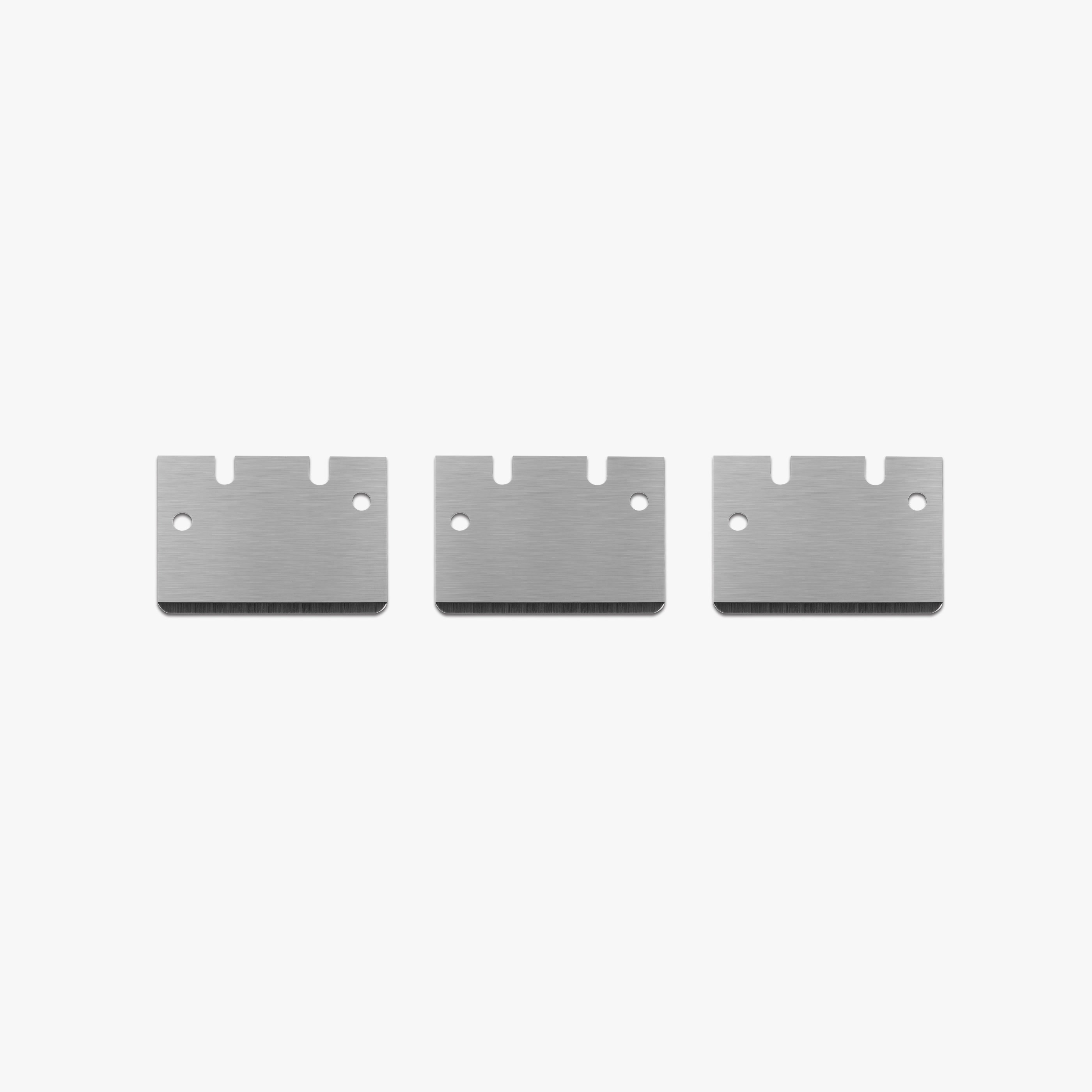
Check the model name before ordering.
Still stuck?
Unexplained stops are one of the faults where a technician reading your logs beats more guessing at home. Send us what you have and we will tell you what it points at, whether a part is needed, and how to get it sorted.
Contact the MindKits team or read more about our service and training options.
This is general troubleshooting guidance based on cases we have handled. It does not replace the official documentation for your specific model, which always takes precedence, and it does not describe any specific coverage, timeframe or cost for your machine. Where we say a cause is likely, that means likely, not confirmed. Some cases only resolve once logs and photos have been reviewed.