MindKits support guide | Updated 10 August 2026
Bambu Lab printer will not connect or reconnect to Wi-Fi: a step-by-step guide
Applies to:Bambu A1 seriesBambu P1 seriesBambu X1 seriesTopics:Wi-FiNetwork connectionBambu HandyBambu Studio
Short answer: most Wi-Fi problems we see on Bambu Lab machines are network settings problems, not broken printers. The two things that fix the majority of cases are removing the old paired printer entry from the app and pairing again from scratch, and checking the Wi-Fi band required by your exact printer model and making sure the phone or computer can reach the same network. Work through the ordered checks below before you assume a hardware fault. If the printer cannot see any networks at all, or the fault survives every check, that is the point to stop and talk to us.
, review pending.
Which machines this guide covers
These steps come from Bambu Lab support cases handled by our workshop, across the P1P and P1S, the A1 and A1 mini, and the X1 Carbon and X1E. The general flow applies to all of them. Band support is model specific, so confirm your exact model before you change anything. P1-series printers need a usable 2.4 GHz network, while some newer Bambu Lab models support dual-band Wi-Fi. Check the current documentation for your own model rather than assuming that one model behaviour applies to all of them.
Separate network names for the 2.4 GHz and 5 GHz bands are not a fault in themselves. In many homes separate names make it easier to put a 2.4 GHz-only printer on the right band deliberately. Connection problems more often come from band steering on a single combined name, guest or client isolation, mesh roaming between access points, security or encryption settings the printer does not accept, or simply weak signal where the printer sits.
Symptoms that point to this guide
- A message on the printer saying it failed to connect to the internet and to check the network connection.
- The printer will not appear or pair in the mobile app or slicer after a house move, a new router, or a new internet plan.
- The Wi-Fi list on the printer shows no networks at all, and a reboot is needed before it will even try again.
- A login or binding failure when adding the printer to your account, even after other parts have been changed.
- Jobs sent from an SD card print fine, but cloud or Wi-Fi sends stall, crawl, or fail on larger files. The camera feed may also drop in and out.
- The slicer says the connection to the printer timed out, or asks you to re-establish the connection, and the connect button appears to do nothing.
Before you start: two questions that save time
An empty network list points toward printer-side wireless hardware; a visible network that will not join usually points to pairing, band, security or site-network configuration.
Our head technician always asks the same triage question, and it is worth answering for yourself first. Is the Wi-Fi completely dead on the printer, or is it working well enough to see your network while the actual connection fails? A printer that cannot see any network at all points towards a hardware issue. A printer that lists your network but fails to join or log in nearly always points at network configuration, the pairing record, or a firewall.
The second question is what changed. New router, new internet provider, a firmware or app update, a shift to a different room, or a move onto a school or office network are all common triggers.
Ordered checks, lowest risk first
Run configuration and network tests before considering parts. P1-series printers require a usable 2.4 GHz network; other models must be checked against current official documentation.
Do these in order. Everything here is done from the printer screen, your phone, or your computer. Nothing requires opening the machine.
- Get the phone or computer onto the intended local network for setup. During pairing, the device you are pairing from should be on the same local network as the printer, and the router must allow devices on that network to talk to each other. The two do not have to show the same network name forever afterwards, but guest networks, client isolation, mesh extenders with their own names, and mobile data left on during setup all cause pairing to fail quietly.
- Forget the paired printer and re-pair it. Remove the existing paired printer device entry in the app, then add the printer again from scratch. In our experience this is the single most common fix, especially after a router change. A stale pairing record will keep failing no matter how healthy the network is.
- Check the Wi-Fi band required by your model. P1-series printers need a usable 2.4 GHz network. Other models may support dual-band Wi-Fi, so check the current official documentation for your model rather than assuming. If your printer is 2.4 GHz-only and the router publishes one combined name, giving the 2.4 GHz band its own name is a useful diagnostic step because it stops band steering pushing the printer at 5 GHz.
- Test with a phone hotspot that matches the band your model needs. Where your phone offers it, turn on maximum-compatibility mode or set the hotspot to 2.4 GHz before you test. A successful hotspot test points at the home or site network. A failed test is useful evidence, but does not by itself prove a hardware fault.
- Try a wired connection if your model has an Ethernet port. Plug into the router and check the printer picks up an IP address. A machine that works over Ethernet but not Wi-Fi narrows things down a long way.
- Reboot the router, then the printer. Give the router a full power cycle and wait for it to settle before retrying the printer.
- On a school, office or managed network, involve your IT support. Many managed networks block the outbound connections the printer needs for cloud features. Ask your IT technician to confirm the printer is allowed out, and that the required outbound ports are permitted. We can supply the current list on request rather than publishing it here, since it changes.
- Cross-test against another identical machine on site. If your site has a second printer of the same model, see whether it connects to the same network. If it does, the fault is likely to sit with the one machine. This is the same isolate by swapping method we use in the workshop.
- Note your firmware and app versions. Record the printer firmware version, the AMS firmware version if you run one, and the app and slicer versions. Do not start updating things at random while chasing a connection fault. MindKits technician note: after a board replacement on some models we have seen activation steps or a firmware update being needed, and on LiDAR-equipped models a temporary error afterwards. These steps are model specific, so ask us about the right order for your machine rather than assuming it applies to yours.
Likely causes and what each one looks like
| What you see | Most likely cause | What to do |
|---|
Causes we have confirmed in real cases. Symptoms overlap, so treat this as a shortlist rather than a diagnosis.
| Network is visible, joining or login fails, often after a router or house change | Stale pairing record, or wrong network name or band | Forget and re-pair, then use the Wi-Fi band required by the model |
| Works on a phone hotspot but not the site network, on a school or business connection | Firewall or outbound port blocking | Ask site IT to permit the printer, then retry |
| SD card jobs print fine, cloud or Wi-Fi sends stall on large files, camera intermittent | Often weak signal, router or network configuration, blocked outbound ports, storage problems, firmware state or a cloud service interruption. A wireless module fault is possible, but it is the last thing to consider, not the first | Work through the ordered checks above first, then collect evidence and contact us. Some past cases have needed parts once the network side was ruled out |
| Wi-Fi list is completely empty, and stays empty after a reboot | Wireless aerial cable or the wireless board | Stop diagnosing and contact us. Parts work is not a customer step |
| Login keeps failing even after parts have already been replaced | Possible version mismatch between the new part and the printer firmware | Contact us. MindKits technician note from a single case, model specific, and not independently confirmed as general behaviour |
| Any scorching, burn marks, discolouration or melted plastic near a port | Electrical fault | Turn off at the wall, unplug, do not power it on again, contact us straight away |
Fixes you can safely do yourself
The customer safe fixes are all configuration level: re-pairing the printer, moving it to a network on the band supported by that model, getting site IT to allow the traffic, and re-binding your account in the app after a network change. If one of these clears the fault, run a small test print over Wi-Fi to confirm the fix holds rather than trusting the first successful connection.
When a part is genuinely needed
Where the evidence points at an aerial cable or internal network component, stop customer-level diagnosis and contact us. Part naming and activation steps differ by model and revision. We will confirm whether an official user-replacement procedure applies or whether the machine needs workshop service.
Where to stop, for safety and for your warranty
- Turn the printer off and unplug it from the wall before touching anything inside. Boards inside these machines are easily damaged if the printer still has power.
- We do not ask customers to work on mains wiring, the power supply, the AC board, or to swap boards or take measurements with a meter. If a step needs that, stop and hand it to us.
- If you see burn marks, a scorched port, a component that has come loose, or deformed or melted plastic, unplug it and stop. Do not power it back on.
- Never bypass or override a safety check or a detection error to get a print going.
- Opening a machine without agreeing it with us first can put your cover at risk, so check with us before you start.
Preventing repeat Wi-Fi problems
- For 2.4 GHz-only models such as the P1 series, keep a usable 2.4 GHz network available with a name the printer can be pointed at. For dual-band models, follow their current network specification.
- On school and office sites, get the printer allowed through the network as part of setup rather than later during a deadline.
- If your system is stable, avoid constant firmware and slicer churn. Note the versions you are running so a change can be traced.
- Write your network name and the pairing steps into your machine notes so a router change is a five minute job next time.
What to collect before you contact us
The faster we can see the fault, the fewer rounds of questions there are. Please send us the model, whether the Wi-Fi list is empty or your network is visible, the exact wording of any on-screen message, a photo or short video of the screen showing it, whether a phone hotspot worked, whether SD card printing still works, your printer and AMS firmware versions, your app and slicer versions, and whether the site is a home, school or business network. If IT has already been involved, tell us what they checked.
Replacement antennas only after diagnosis
These are relevant parts or complementary products, not a diagnosis. Confirm your exact printer model and the guide's troubleshooting result before ordering.

Check the model name before ordering.
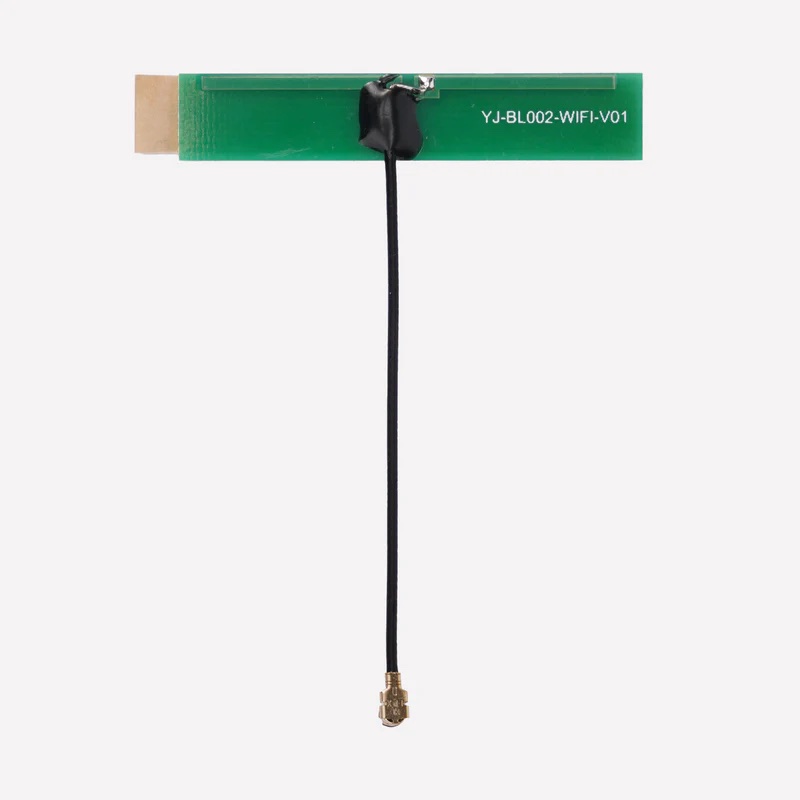
Check the model name before ordering.
Still stuck?
If you have worked through the checks above and the printer still will not connect, get in touch and we will pick it up from there. Our technical team can review your evidence, confirm whether a part is needed, and arrange either a guided self repair or a workshop booking.
Contact the MindKits team or read more about our service and training options.
This is general troubleshooting guidance based on cases we have handled. It is not a substitute for the official documentation for your specific model, which always takes precedence. If your model documentation says something different, follow it. Nothing here should be read as a commitment about coverage, timeframes or costs for your machine.