MindKits support guide | Updated 21 October 2026
3D printer grinding, rattling, clicking or squealing noise: locate the noise safely
Applies to:Bambu A1 seriesBambu P1 seriesBambu X1 seriesBambu H2 seriesBambu AMSOther FDM printersTopics:NoiseBelts and bearingsFansExtruder clicking
A new grinding, rattling, clicking or squealing noise from a 3D printer is usually one of five things: a normal calibration or filament change routine, the AMS or filament cutter, the extruder skipping because filament cannot get through, a belt, pulley or bearing problem, or a worn fan. The fastest way to tell them apart is to note exactly when the noise happens and whether print quality has changed. This guide walks you through that safely, without forcing anything or taking the machine apart.
The first question we ask. Is it only a noise, or is print quality affected too? A noise with perfect prints is rarely urgent. A noise with layer shifts, ringing marks, under extrusion or error messages needs attention before you keep printing.
Written from real MindKits support cases
Which machines this applies to
- Bambu Lab A1 and A1 mini (bed slinger design, with AMS Lite)
- Bambu Lab P1 series and X1 series (enclosed CoreXY design, with AMS)
- Bambu Lab H2 series, including the AMS 2 Pro
- Other FDM printers, including older Ultimaker machines. The approach is the same, but parts differ.
Normal noises differ between models. If you are not sure what normal sounds like for yours, check the official Bambu Lab wiki or send us a short video.
Symptoms we see most often
- Loud buzzing, humming or vibration at the start of a print or during calibration.
- Grinding from the AMS when it feeds or retracts, sometimes with a rough or chewed patch on the filament.
- A grinding or clunk at a colour change, near the filament cutter.
- Repeated clicking from the print head while extruding, often with under extrusion or an extruder error.
- A ticking or clicking that follows the print head or bed as it moves.
- A squeak or squeal from the bed area, sometimes with ringing marks on the print.
- A rattle or whine that continues when the printer is idle, often from a fan.
Stop points: read before you start
Stop the print and power off at the wall if any of the following apply, then contact us.
- You hear a crash, a scraping sound, or the nozzle is hitting the print or the bed.
- You notice a burning or hot electrical smell, smoke, or a fan that has stopped with an error.
- Layers have shifted and the noise continues on the next print.
- A step would need you to open the electronics bay, touch the power supply or mains wiring, or unplug or swap circuit boards.
Never move the print head or bed by hand while the printer is powered on. Power off and let the nozzle and bed cool before touching the print head, belts or connectors, because the nozzle stays hot enough to burn for a while after printing. Never push your fingers or tools into a spinning fan, never force an axis that feels jammed, and never disable or work around a sensor or error to keep printing.
Work through this order first
These checks are low risk. Do them in order, because each one narrows down where the noise lives.
1. Record the noise
Take a short phone video with sound, close to the noise, and note what the printer was doing. Write down any message or code on screen.
2. Work out when it happens
Use the diagram below. The timing of the noise is the strongest clue you have.
Note when the noise happens and follow the branch. Orange branches need a closer look before more printing.
3. Rule out normal noises
Bambu Lab printers run calibration routines that deliberately shake the motion system, so loud buzzing or humming at the start of a print can be normal. Fans ramp up and down, and the AMS and cutter make motor and clunk sounds at each filament change. If the noise only appears during these routines and prints look good, it is very likely normal.
4. Check the surface the printer sits on
MindKits technician note: some tables resonate badly, which amplifies normal motion noise and can upset calibration. Make sure the printer sits on a solid, level surface with all feet in contact, and that nothing is touching the frame, such as a wall, a spool or a loose cable.
5. Make sure transport fixings are gone
Some printers ship with screws or locks that hold the bed or axes still in transit. MindKits technician note: we have seen a bed jam and grind because a transport screw was left in, and once because a screw under the build plate was not fully tightened. Check the unboxing guide for your model. If a screw needs tightening under the bed, contact us before forcing the bed past it.
6. Look for loose items and debris
With the printer powered off and cool, look for filament scraps around the bed or print head, a full purge chute, or a cable rubbing on a moving part. An on and off rattle is often something simple sitting where it should not be.
7. Move the axes gently by hand, powered off
With the printer off and cool, slowly move the print head and bed through their travel. Feel for rough spots, catches or clicks, and listen for a squeak. Do not force anything. If you can reproduce the noise this way, video it. MindKits technician note: a belt that has ridden up onto the flange of an idler pulley can create a ticking or clicking sound as it moves.
8. If it clicks only when extruding
Repeated clicking from the print head while it is pushing filament is usually the extruder skipping because filament cannot get through the hotend. MindKits technician note: the clicking is normally a symptom, not the fault itself. Work through our guide to the hotend not heating and extruder clicking rather than looking at the extruder first. If the noise is a grinding from the AMS during loading, use our AMS loading and retraction guide.
9. If you suspect a fan
A fan that rattles, whines or changes pitch, even when the printer is idle, is often worn or has debris in it. Note which fan it is, because the print head alone usually has more than one. A photo pointing at the fan helps if you are not sure of its name. If cleaning did not help, or the printer shows a fan error, stop and contact us rather than running it with a failing fan.
Likely causes and what points to them
Based on patterns in our support cases. A starting point, not a confirmed diagnosis.
| What you observe | Most likely cause | Confidence | Who should do the work |
|---|
| Buzzing or humming at the start of a print, prints look fine | Normal calibration routine | Strong | Nothing to fix |
| Grinding from the AMS when feeding, chewed filament | Feeder gears slipping on filament, or a worn feeder | Strong and repeatedly confirmed | You for filament checks, then a part or our workshop |
| Clicking from the print head while extruding | Extruder skipping because of a partial blockage or a heating fault | Strong | See the hotend clicking guide |
| Hotend visibly moves up and down while the extruder clicks | Hotend not held firmly in its mount | Confirmed in our workshop | MindKits |
| Ticking that follows axis movement | Belt riding on a pulley flange, or a belt mount or tension problem | Moderate | Contact us with a video |
| Squeak or squeal from the bed, ringing marks on prints | Bed axis bearings. On the A1 mini, Bambu Lab has a dedicated squeaky heatbed guide | Moderate | Official guide first, then warranty assessment |
| Rattle or whine even when idle | A worn fan or debris in a fan | Moderate | A confident owner with the official guide, or us |
| Bed grinds or jams in one spot | Transport fixing left in, or a loose screw under the bed | Confirmed in our cases | Contact us before forcing it |
| Loud noise with layer shifts on an older machine | Loose pulley or play in a rail | Moderate | MindKits workshop |
Cleaning and lubrication
Dust and debris on rods, rails and belts can cause noise. For cleaning and any lubrication, follow the official maintenance guide for your model. The wrong product, or the right one in the wrong place, can attract dust or damage parts. If you are unsure, our 3D printer maintenance guide covers a sensible routine, and we can do a service for you.
What to send us
- Your printer model, and the AMS model if one is fitted.
- A short video with sound of the noise, filmed close to its source.
- When it happens: at start up, at filament changes, while extruding, on fast moves, or all the time.
- Whether print quality has changed, with a photo of an affected print.
- Any error message or code shown on screen or in the app.
- If possible, a video of you moving the head and bed by hand with the printer powered off.
- When it started, and anything that changed just before, such as a crash, a part swap or a firmware update.
Frequently asked questions
Why is my Bambu printer making a loud buzzing noise at the start of a print?
Bambu Lab printers run calibration routines that deliberately vibrate the motion system, which can sound alarming. If the noise stops once printing begins and prints look good, it is very likely normal.
Why does my extruder keep clicking?
Clicking while extruding is usually the extruder skipping because filament cannot get through the hotend, often from a partial blockage or a heating problem. Our extruder clicking guide walks through the checks.
My Bambu A1 is squeaking. Is that a fault?
A squeak from the bed area can come from the bed axis bearings, especially if you also see ringing marks on prints. Check the official Bambu Lab guide for your model first, and if it continues, send us a video with sound.
Is it safe to keep printing with a grinding noise?
If prints are fine and the noise only happens during calibration or filament changes, it is usually safe. If you hear a crash or scraping, smell burning, or see layer shifts, stop the print, power off and contact us.
Parts mentioned in this guide
These are relevant parts or complementary products, not a diagnosis. Confirm your exact printer model and the guide's troubleshooting result before ordering. Only replace a fan, belt or feeder once you have confirmed it is the source of the noise.
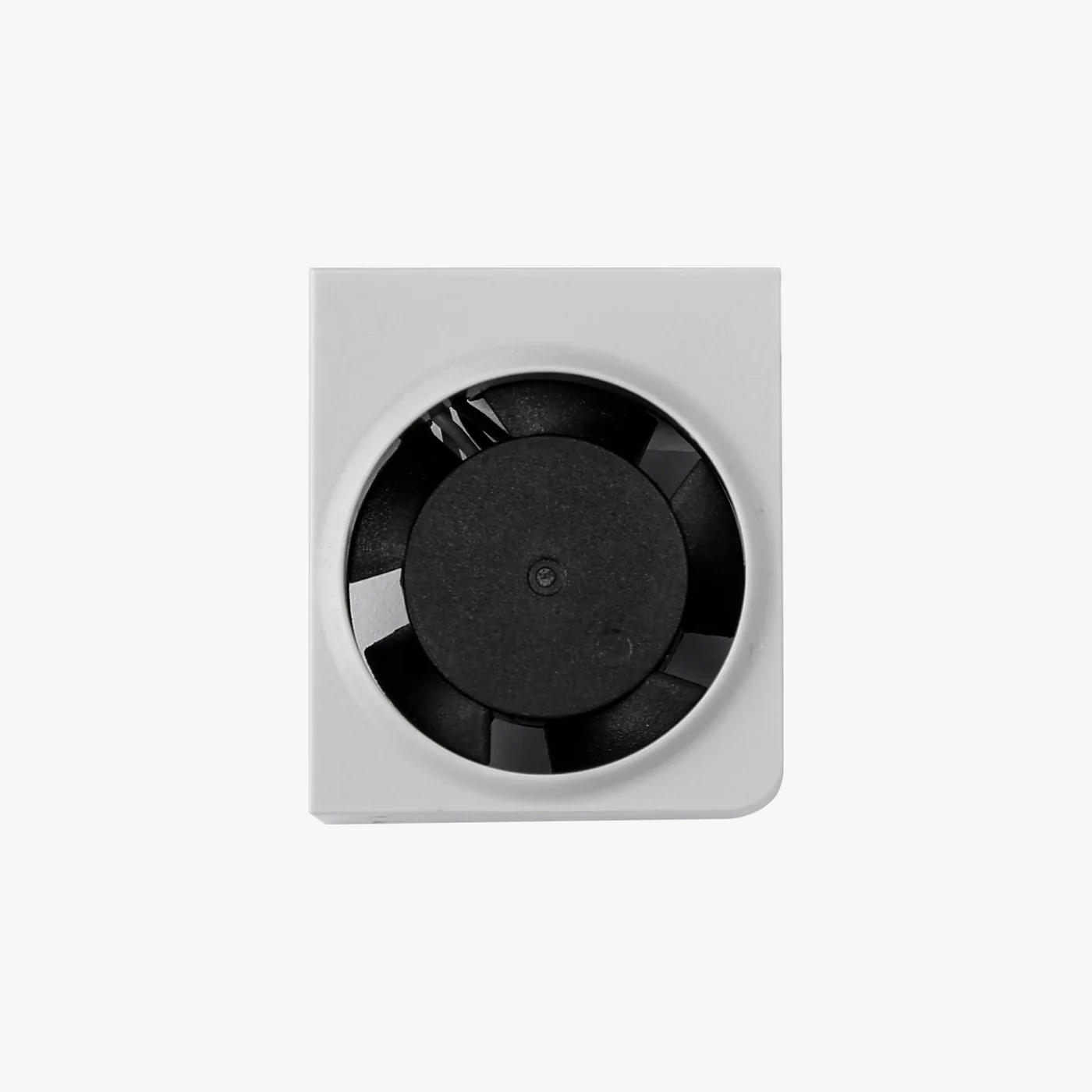
Fits A1 and A1 mini only. Confirm which fan is noisy first.
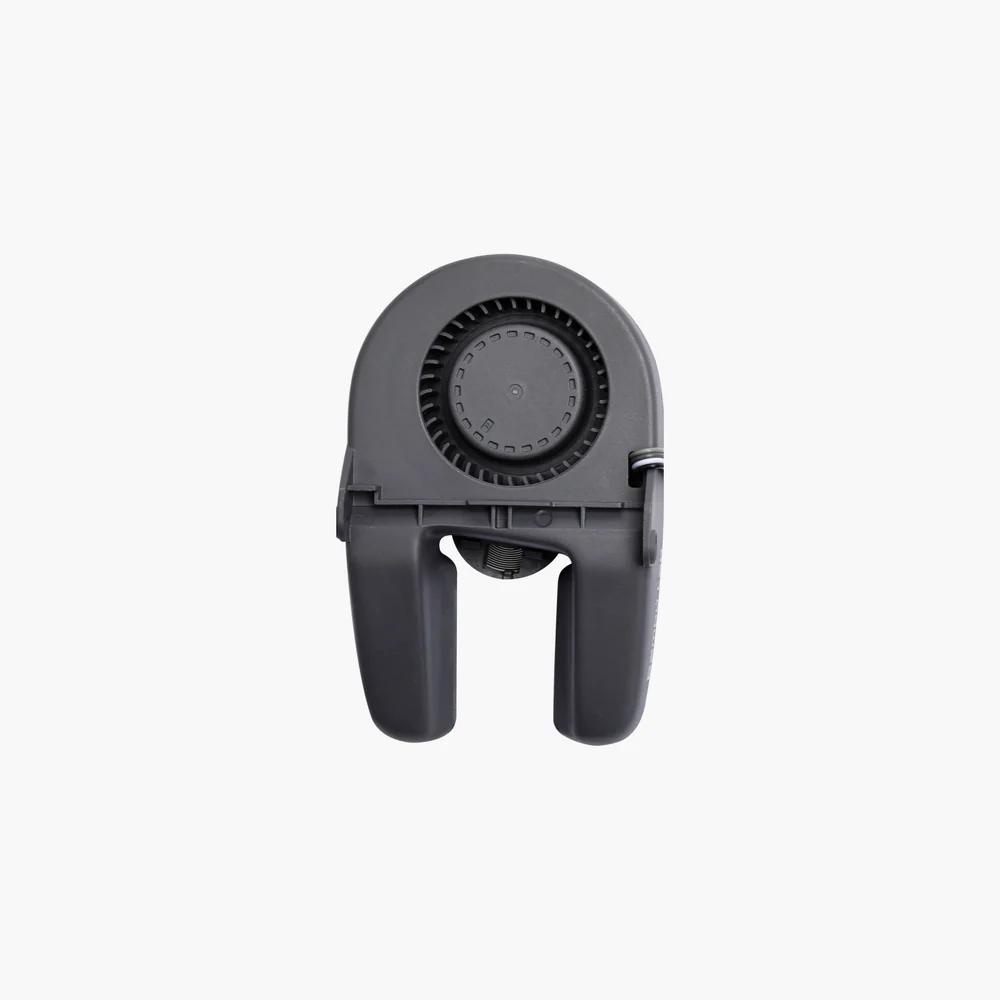
Fits A1 and A1 mini only. Confirm which fan is noisy first.
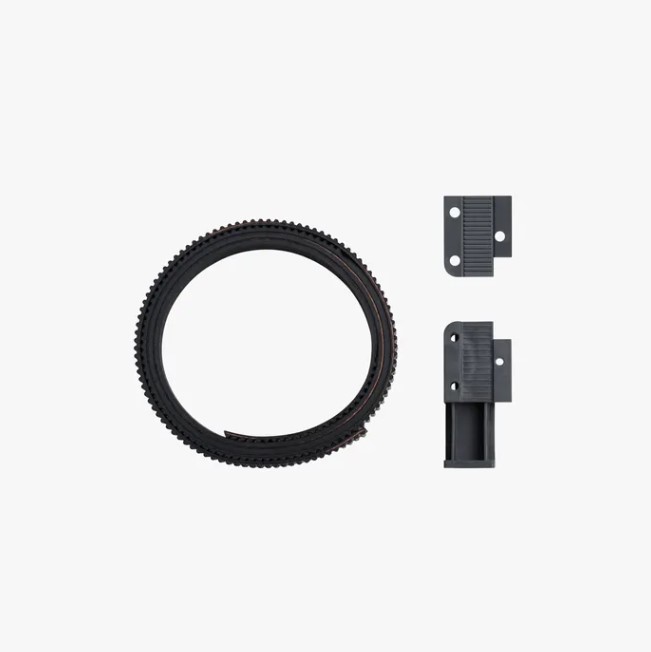
Fits A1 mini only. Talk to us before replacing a belt.
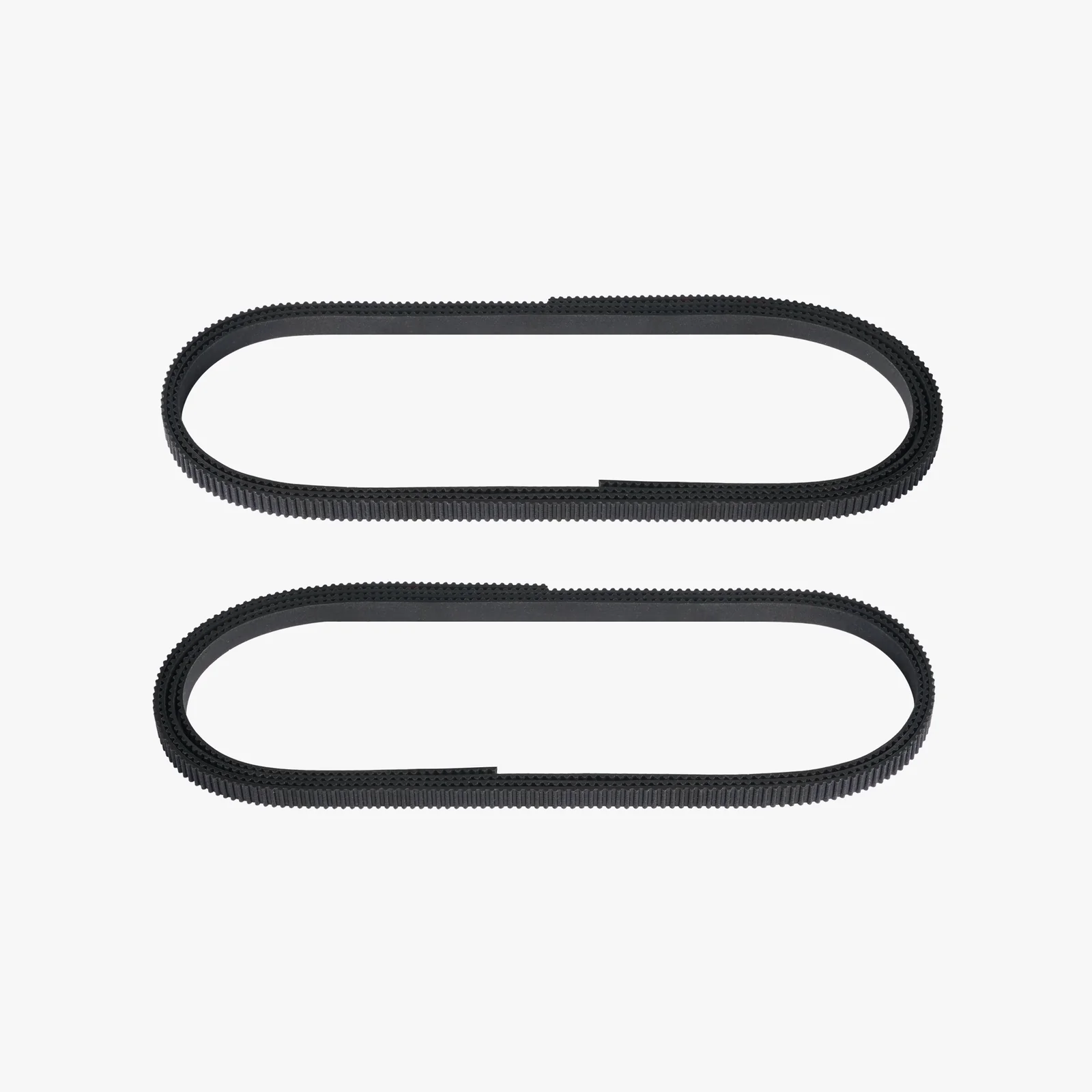
Listed for X1 series and P1P. Confirm your model with us before ordering.

For the four-slot AMS. AMS Lite and AMS 2 Pro parts differ. Confirm your AMS model.
Still stuck? Talk to us
Send the details above through our contact page and our technical team will work out the next step with you, whether that is a part in the post or a repair at our workshop. You can also read about our services and training options.
This is general troubleshooting guidance based on faults we have seen. It is not a substitute for the official documentation for your model, which always takes precedence. Parts availability, compatibility and service arrangements are confirmed case by case.