MindKits support guide | Updated 21 October 2026
Bambu Lab HMS error codes and printer logs: how to read them and what to send support
Applies to:A1 miniA1P1 seriesP2SX1 seriesH2 seriesTopics:HMS codesPrinter logsFirmwareSupport evidence
An HMS code is the error code your Bambu Lab printer shows when its Health Management System spots a problem. Photograph the message and its code, then look the code up on the official Bambu Lab wiki by scanning the QR code on the screen or typing the code into the wiki search. If the wiki steps do not fix it, export the printer logs and send us the evidence pack described below, so our technicians can work out the next step in one reply instead of five.
Why this matters. In our cases, technicians usually ask first for the exact code, a photo, a short video and the firmware version. Sending these up front gets you a useful answer faster.
Written from real MindKits support cases
Which machines this applies to
- A1 mini and A1
- P1P and P1S, plus P2S
- X1 Carbon, X1 and X1E
- H2 series printers, including H2D and H2S
All current Bambu Lab printers use HMS, but where the message appears and how logs are exported differ by model. The menu paths below follow the official Bambu Lab wiki at the time of writing. Menus can change with firmware updates, so if your screen looks different, check the wiki page for your exact model.
What an HMS code actually is
HMS stands for Health Management System. It watches hardware connections, mechanical status and print problems, and raises an alert when something looks wrong. Each alert has a colour that tells you how serious it is:
- Red: the print has stopped and the fault must be cleared before starting again.
- Yellow or orange: the print has paused and the fault must be cleared before resuming.
- Blue: a notice only, such as a door left open. Printing carries on.
HMS codes are 16 characters long, written in four groups of four, for example in the format XXXX-XXXX-XXXX-XXXX (a format example only, not a real code). The first group identifies the part of the system involved, such as the tool head or AMS. Bambu printers also show shorter "error codes" of two groups as a pop-up on the main screen. Treat both the same way: write down every character exactly.
Symptoms that mean you should collect evidence
- A red or orange message that comes back after you clear it.
- Prints that pause or cancel overnight, with notifications in Bambu Handy.
- A code the wiki describes for a different model from yours.
- Faults that started straight after a firmware update.
Stop points. Collecting evidence never requires opening the printer.
- If you see smoke, smell burning or hot electronics, or the printer has crashed into something, turn it off at the power switch and contact us. Do not keep retrying.
- The nozzle and heatbed can be hot enough to burn. Let them cool before going near the print head.
- Power off before touching the print head, cables or connectors. Do not move axes by hand while the printer is powered.
- Never open the power supply, mains wiring or circuit boards, and never bypass or unplug a sensor to silence an error. That is workshop-only work.
- Only remove the microSD card after ejecting it from the printer menu or turning the printer off.
Work through this order
1. Photograph the message before you clear it
Photograph the whole screen, including the code and any QR code. Note the time and what the printer was doing: homing, calibrating, loading filament, or mid-print.
2. Find every code, not just the first
- X1 and H2 series: open the assistant on the printer screen to see all current alerts, each with a QR code.
- A1 series: the assistant sits in the bottom right corner of the screen. Tap a message to bring up its QR code.
- P1 series: HMS codes scroll across the home screen. Write the code down, or check it in Bambu Studio or Bambu Handy, which is usually easier.
- Bambu Handy and Bambu Studio: the same alerts appear on the printer's device page. Tapping or clicking a message opens the matching troubleshooting guide.
3. Look the code up on the official wiki
Scan the QR code with your phone, or go to the Bambu Lab HMS home page and type the code into the search box in groups of four with hyphens. Follow the wiki steps for your model only. If the page describes a different model from yours, do not follow it. Check your firmware is current and tell us.
MindKits technician note: we have seen a code reported that matched a different printer model. The first step was confirming the firmware was up to date, because that points towards the correct repair path.
4. Check and note your firmware version
Find the firmware version in the printer settings or on the printer's page in Bambu Handy or Bambu Studio. Write it down before updating. If an update is available and the printer is working well enough to update, the wiki and our technicians usually suggest doing so before deeper fault finding. If problems started straight after an update, see our notes on reconnecting a Bambu printer after network or app changes.
5. Export the printer logs
Logs record what the printer was doing around the fault. Paths per the official wiki:
- A1 series and P1 series: logs are saved to the microSD card automatically. On the printer screen go to Settings, SD Card, Eject, then copy the logger, recorder and corelogger folders from the card on your computer.
- X1 series: insert a FAT32 microSD card into the slot on the right of the screen, go to Settings and choose Export Log to external storage, then tap Export. You get a .tar or .tar.gz file.
- H2 series and P2S: go to Settings, Export Log to external storage, and export to a USB drive. Again you get a .tar or .tar.gz file.
- Through Bambu Handy: when you have an open ticket with Bambu Lab, Handy can upload printer logs for a chosen time window from the support ticket screen.
Do not rename the exported file. If the problem is with the Bambu Studio software itself rather than the printer, its logs are in Studio under Help, Show Configuration Folder, in the log folder. Zip that folder to send it.
MindKits technician note: on a case where the print head read zero degrees and the cutter kept triggering, the logs showed the tool head board had lost communication with the mainboard. That narrowed the cause to the tool head cable connection, the tool head board or the mainboard, instead of guessing at parts.
6. Record a short video
A short phone video of the fault happening is often more useful than a long description. Film the moment the error appears, any noise, and how far filament gets before it is rejected. Technicians also often ask for a wider photo of the whole machine, front and back.
Privacy: what is in your logs
Printer logs are diagnostic files, but they can include device details such as the serial number, network information and, if you tick the option, key photos from the printer's camera. Treat them like any account document:
- Send logs only through our contact page or an official Bambu Lab ticket. Do not post them on public forums or social media.
- Only tick the camera photo option if the fault involves the camera, AI detection or the lidar. Check what the camera can see first.
- Crop photos so they do not show your serial label, Wi-Fi details or anything personal, unless we ask for the serial.
Work from the screen message to the wiki first. If the wiki does not fix it, collect logs and video before contacting us. Stop and power off for smoke, smell, heat or a crash.
What the code usually tells you
General patterns from our cases. The wiki page for your exact code always takes precedence.
| What you observe | Likely cause | Confidence | Who should do the work |
|---|
| Blue notice that clears on its own | Information only, such as a door or lid prompt | Strong, per Bambu Lab's alert levels | You |
| Orange or red alert that clears after following the wiki | A one-off event such as a tangle, empty spool or blocked path | Moderate | You, following the wiki |
| Same alert keeps returning on the same part | A failing sensor, fan, heater or feeder on that part | Moderate, needs logs and video to confirm | Part fitted by a confident owner, or our workshop |
| Code appears to belong to another model | Out of date firmware or a misread code | Moderate, confirmed in one technician case | You first, then us |
| Communication errors, readings of zero, several unrelated alerts at once | Cable connection, tool head board or mainboard | Low until logs are reviewed | Our workshop for board work |
What to send us
- Printer model and, if you bought it from us, roughly when.
- A photo of the screen showing every code, or the codes typed out in full.
- The firmware version, and whether the fault started after an update.
- When it started, how often it happens, and what the printer was doing.
- A short video of the fault, plus a wider photo of the whole machine.
- The printer logs or exported .tar file, if you can get them.
- What you have already tried, including anything from our hotend not heating guide or our printer stops after a few layers guide.
Frequently asked questions
How do I look up a Bambu HMS error code?
Scan the QR code next to the message on the printer screen, or enter the full 16-character code in groups of four with hyphens into the search box on the Bambu Lab wiki. Clicking the alert in Bambu Studio or Bambu Handy also opens the matching guide.
Where are Bambu printer logs saved?
A1 and P1 series printers save logs to the microSD card automatically. X1, H2 series and P2S printers export a log file from Settings to a microSD card or USB drive, depending on the model.
Can I send logs from Bambu Handy?
Yes, for Bambu Lab support tickets. Handy can attach printer logs for a chosen time window when you reply to a ticket. For a MindKits case, send the exported file or card folders through our contact page.
What if my printer has no microSD card?
Bambu Lab says logs are not mandatory when they cannot be exported. Send us the photos, video and firmware version, and we will tell you whether logs are needed.
Parts mentioned in this guide
These are relevant parts or complementary products, not a diagnosis. The tool head cable is only one possible cause of communication errors, so send us your logs first and confirm your exact printer model before ordering.
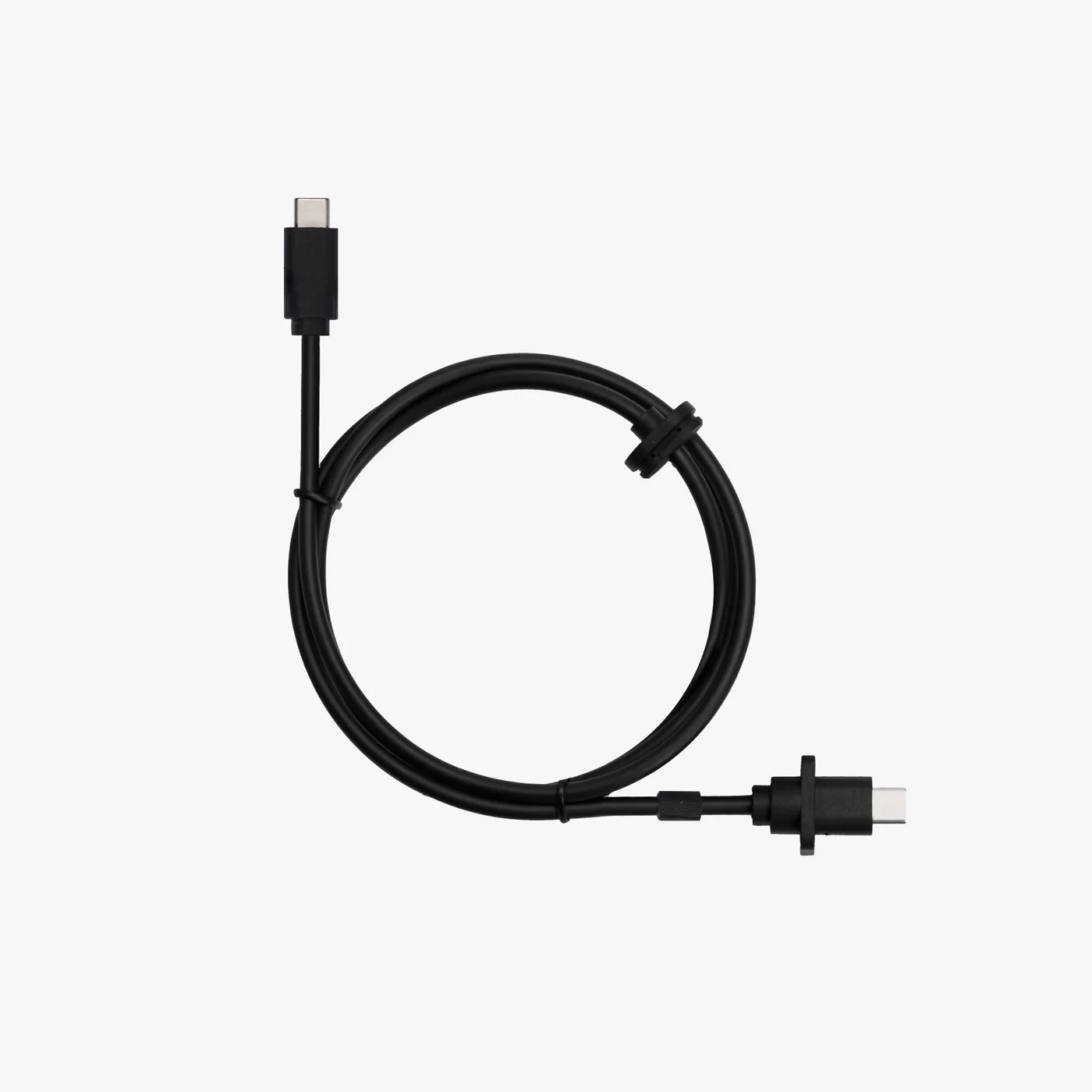
Fits A1 only (mainboard to tool head cable). Not for A1 mini. Confirm your model.

Fits A1 mini only. Not for A1. Confirm your model.

X1 series only (cable in the towing chain). Confirm your model.
Still stuck? Talk to us
Send the details above through our contact page and our technical team will work out the next step with you, whether that is a part in the post or a repair at our workshop. You can also read about our services and training options.
This is general troubleshooting guidance based on faults we have seen. It is not a substitute for the official documentation for your model, which always takes precedence. Parts availability, compatibility and service arrangements are confirmed case by case.