MindKits support guide | Updated 21 October 2026
Bambu homing failed, axis or belt error: safe checks before service
Applies to:A1A1 miniP1 seriesX1 seriesH2 seriesTopics:Homing failedAxis stuckBelt tensionMotor error
If your Bambu Lab printer says homing failed, reports an axis error, or flags a belt or motor problem, the most common causes we see are simple: transport packing that was never removed, something physically blocking the axis, or a printer sitting on a surface that wobbles during calibration. Motor and board faults do happen, but in our experience they are rare. Below are the owner-safe checks, in order, and clear points where to stop and hand it to us.
The one rule that matters most. Never force an axis that is stuck. Forcing a jammed bed or toolhead, or letting the motor keep grinding against an obstruction, can turn a five minute fix into a workshop repair.
Written from real MindKits support cases
Which machines this applies to
- A1 and A1 mini, where the bed moves front to back on the Y axis and the gantry carries the toolhead.
- P1 series and X1 series, where the toolhead moves on X and Y inside the frame and the bed moves up and down on Z.
- H2 series machines. The general approach is the same, but menu names, sensors and part layouts differ, so always check the official Bambu Lab wiki page for your exact model.
Belts, motors and tensioning methods differ between these families, and parts are not interchangeable.
Symptoms we see most often
- "Homing Z axis failed" or a similar homing error during the first calibration on a brand new printer.
- The bed on an A1 or A1 mini that only moves a short distance before it jams, sometimes with a grinding noise from the Y motor.
- A belt tension or resonance error during calibration, sometimes with rattling noises and print quality that gets worse over a few days.
- Layer shifts partway through a long print, where the top of the model is offset from the bottom.
- An X, Y or Z stepper motor error on the screen or in the app.
Stop points: read this before touching anything
Switch off and unplug the printer at the wall before you put your hands inside it. Then stop and contact us if any of the following apply.
- An axis will not move by hand with the power off, or it moves a little and then jams hard. Do not push it past the jam.
- You hear grinding, clicking or a motor straining while the printer is homing. Stop the job or switch off rather than letting it repeat.
- A belt is frayed, cracked, has missing teeth, or has come off its pulley or mount.
- A fix would mean removing a motor, unplugging any cable, opening the electronics bay, or working on mains, the power supply or a board.
- You would have to turn the Z lead screws by hand. Turning them individually can put the bed out of alignment, and we have had to repair machines where that happened.
Never move an axis by hand while the printer is powered and the motors are engaged. Let the nozzle and bed cool before reaching near them, as both can cause burns. Never bypass a sensor or ignore a repeated safety error to keep printing.
Work through this order first
Do these in order. Each one removes a possible cause.
1. Record exactly what the printer says
Write down the full error wording and any code shown on the screen or in Bambu Handy. Video the homing attempt with sound. Note your firmware version.
2. Check for transport packing
New printers ship with foam, brackets, ties and, on some models, transport screws that lock moving parts for the journey. MindKits technician note: leftover transport protection is one of the most common causes of a homing failure on a new printer. Go back through the quick start guide for your exact model, with the power off, and confirm every item it lists has been removed. If the printer already homed against packing, contact us before calibrating again.
3. Clear obstructions
With the power off, look along each axis for anything in the way: a purged strand of filament, a fallen print, a scraper, a tool left on the bed, or a cable that has slipped into the path of the toolhead. Remove anything loose, but do not dismantle covers to look further.
4. Feel the axis by hand with the power off
Only with the printer switched off, and only where the official guide for your model allows it, gently move the toolhead or bed along its travel. Is it smooth, or stiff and catching? MindKits technician note: when an A1 bed jams after a short distance, we ask for a video of the bed being moved by hand with the power off, because it shows us straight away whether something is fouling the bed. If it stops, catches or grinds, do not push through it. Stop and send us that video.
5. Check the surface the printer sits on
MindKits technician note: some tables and shelves resonate during the vibration part of calibration, and that can trigger belt tension or resonance errors on a printer with nothing wrong with it. Move the printer to a solid, level bench or the floor and run calibration again.
6. Power on, home, then run the official calibration
Plug back in, power on, and let the printer home. Then run the full official calibration from the printer menu or app. If the error clears, note what you changed. If you were also seeing first layer problems, our first layer failures guide covers what to check next.
7. Look at the belts
Power off again. Look along each visible belt without removing covers. You are looking for fraying, cracks, missing teeth, debris packed into the teeth, a belt riding off its pulley, or a belt that is visibly slack compared with the others. Do not set tension by feel or by a number from the internet. Use only the official Bambu Lab tensioning procedure for your model, or leave it to us.
8. Noises during bed levelling
A squeak only during the bed up and down movement on a P1 or X1 series printer can come from the Z belt area under the printer. MindKits technician note: we advise grease only, never oil, in a thin, light amount, as described in the official maintenance guide for your model. If the noise is grinding rather than squeaking, or it does not settle, see our printer maintenance guide and contact us.
A safe check order for homing, axis and belt errors. Every orange box means stop and talk to us rather than continuing.
Likely causes and what points to them
Based on patterns from real MindKits support cases. A table like this is a starting point, not a diagnosis.
| What you observe | Most likely cause | Confidence | Who should do the work |
|---|
| Homing fails on the first calibration of a new printer | Transport packing, brackets or screws still in place | Strong and repeatedly confirmed | You, using the quick start guide |
| Bed or toolhead jams at the same point when moved by hand, power off | Something fouling the axis, such as a loose screw or debris | Strong | You can clear loose debris. Anything else, contact us |
| Belt tension or resonance error during calibration, printer otherwise fine | Unstable or resonant table | Moderate, easy to test | You, by moving the printer |
| Resonance errors plus rattling and worsening prints soon after setup | A loose belt mount or a tensioning fault | Moderate, needs bench confirmation | MindKits workshop |
| Layer shifts on long prints, with an axis that feels stiffer than before | A failing stepper motor is one possibility, as are loose bed or hotend fixings | Needs testing | MindKits workshop |
| Stepper motor error that persists after every check above | Motor, motor cable or control board | Rare in our experience, needs bench testing | MindKits workshop only |
| Bed tilted or Z homing odd after the bed or belt was removed at home | Lead screws turned out of alignment | Strong when it applies | MindKits workshop only |
What is workshop-only
Replacing a stepper motor, a motor or toolhead cable, a belt mount, a lead screw, or any control board is workshop work. MindKits technician note: motor failures on Bambu printers are genuinely rare in our service history, and the screws inside these printers are soft and round off easily, which makes a home motor swap riskier than it looks. If you want to fit a belt yourself, tell us first so we can confirm the part, and follow only the official guide.
We work repair first. We will tell you honestly what we find before any parts are fitted. If your printer stops partway through prints without a clear axis error, our guide to printers that stop after the first layers may be a better fit.
What to send us
- Printer model and roughly how long you have had it.
- The exact error wording and any code, plus your firmware version.
- A short video of the homing or calibration attempt, with sound.
- A video of each affected axis being moved gently by hand with the power off.
- Clear photos of the belts you can see, and of any packing you found.
- What the printer sits on, and whether moving it helped.
- Whether the problem began after a move, crash, firmware update or home repair.
Frequently asked questions
Why does my Bambu printer say homing failed?
On a new printer it is most often transport packing that was not removed. On an older one, check for an obstruction, then feel the axis by hand with the power off. If it moves freely and the error repeats, contact us with a video.
How tight should the belt be on a Bambu A1?
We do not give a tension figure, because the method is model-specific. Use only the official Bambu Lab belt procedure for your model.
My Bambu bed is stuck and the motor grinds. What should I do?
Stop the printer straight away and switch it off. Do not force the bed. Check for packing and debris, then send us a video of the bed being moved gently by hand with the power off.
Is it a motor error or something simpler?
Usually something simpler. Motor failures are rare in our service history. Rule out packing, obstructions and the surface first, then let our workshop test the motor, cable and board.
Belts mentioned in this guide
These are replacement belts for specific models, not a diagnosis. Only order one once the checks above, or our technicians, point to a damaged belt, and confirm your exact printer model first.
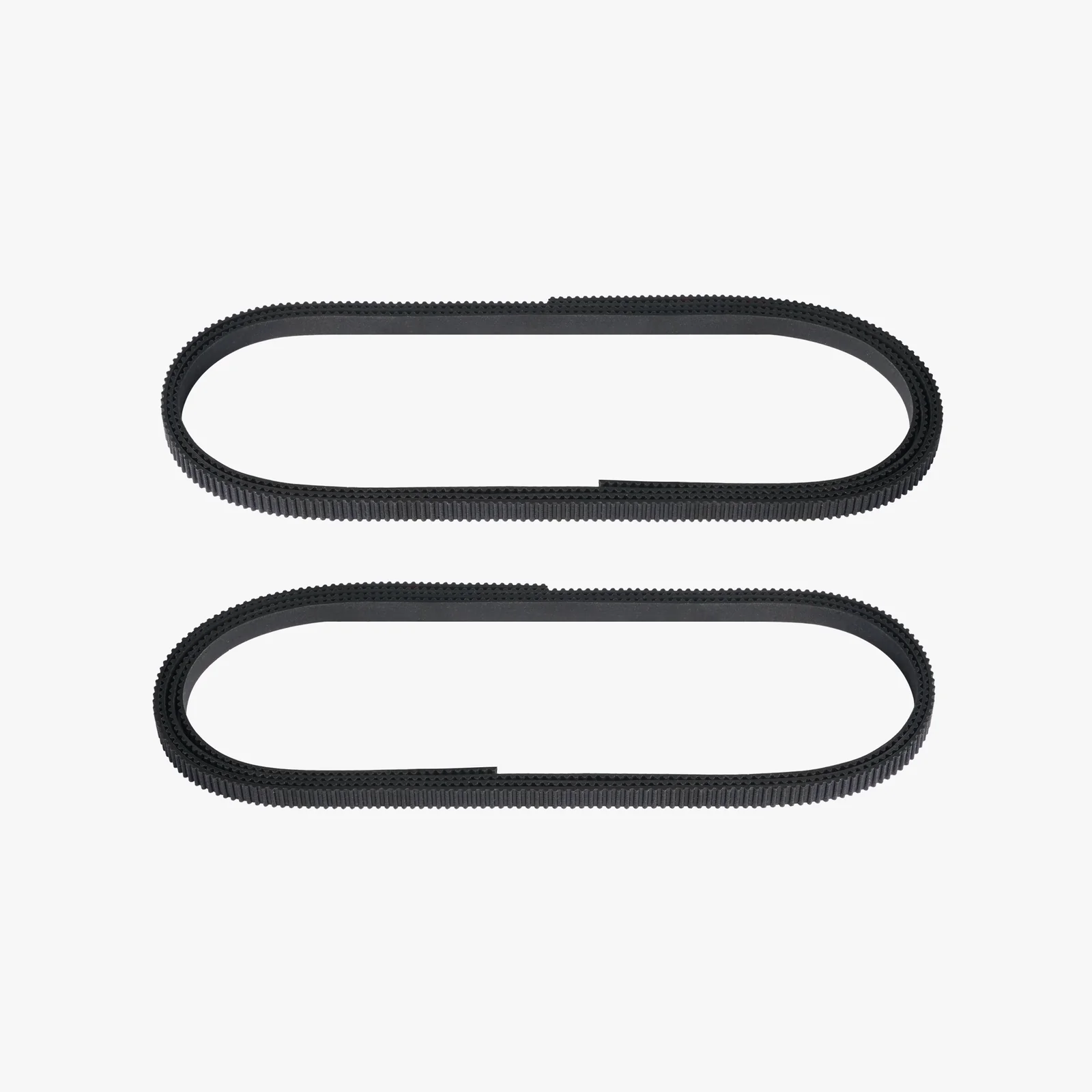
Listed for X1 series and P1P. Confirm your model before ordering.

Listed for X1 series and P1P. Confirm your model before ordering.
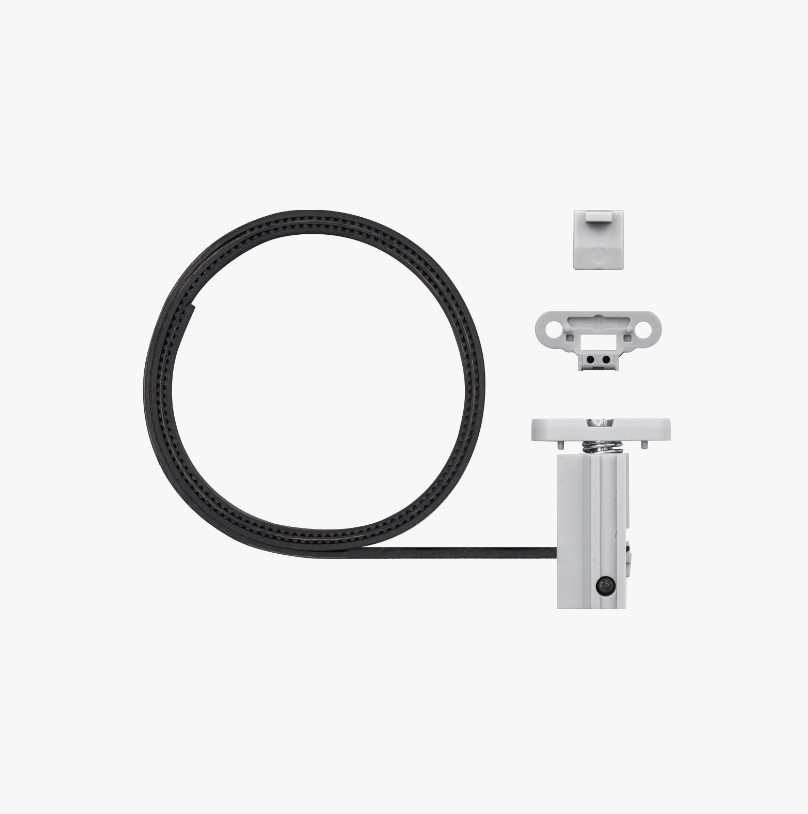
Fits A1 only, not A1 mini. Confirm your model.

Fits A1 only, not A1 mini. Confirm your model.
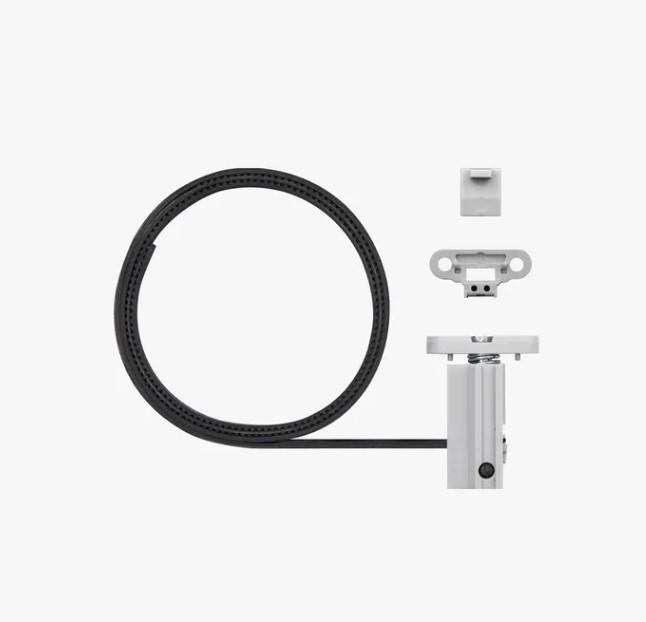
Fits A1 mini only, not A1. Confirm your model.
Still stuck? Talk to us
Send the details above through our contact page and our technical team will work out the next step with you, whether that is a part in the post or a repair at our workshop. You can also read about our services and training options.
This is general troubleshooting guidance based on faults we have seen. It is not a substitute for the official documentation for your model, which always takes precedence. Parts availability, compatibility and service arrangements are confirmed case by case.